

Getting started
First launch
Section titled “First launch”The first window shows the Welcome screen. Its four buttons install shell integration, open the Connect window, open Settings, and open the accessibility settings.
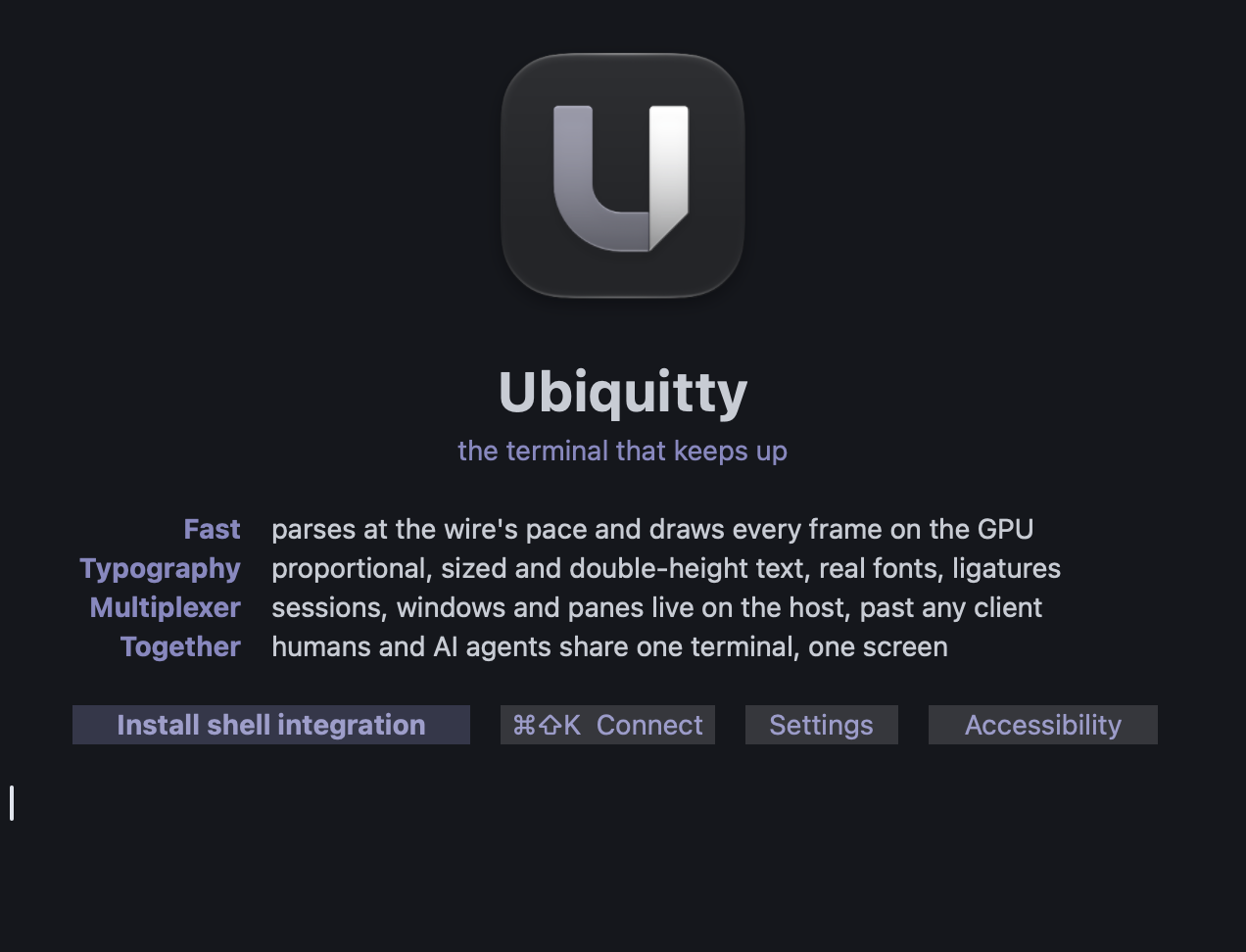
Install shell integration first: it asks before writing, names the files it will change, and adds a short block to your shell’s startup file. Prompt marks, command selection and ubq run depend on it. Details: Shell integration.
Keys to know
Section titled “Keys to know”| Keys | Action |
|---|---|
| ⌘N, ⌘T | New window on the current connection, new tab |
| ⌘W | Close the pane, then the tab, then the window; asks if something is running |
| ⌘1 to ⌘9 | Select a tab |
| ⌘⇧P | Beam: every command and setting |
| ⌘F | Find in scrollback |
| ⌘I | Inspector |
| ⌘⇧K | Connect to a host |
| ⌘, | Settings |
| ⌘+, ⌘− | Font size |
Tabs are native macOS tabs; drag one out to make it a window. The menu bar shows every shortcut.
Settings and the config file
Section titled “Settings and the config file”Settings and ~/.config/ubiquitty/config.toml are two views of one store. Edit Preferences File… opens the file in your editor; the app applies a saved change to open windows without a restart. Every key is in the configuration reference.
Sessions that stay
Section titled “Sessions that stay”Every window you open locally runs its own shell. To keep a session past the window, or to let an agent attach to it, use File › Share This Window with Agents: the shell moves to the local host and can keep running after you detach. Sessions you open through Connect already live on a host. File › New Local Window explicitly opens a local shell. In a remote workspace, New Window on [connection] keeps the new window on that connection.
Closing a remote window asks whether to end that host window or detach from the workspace. Window › Workspaces offers both actions for every open remote workspace; Cancel is the safe default. See Multiplexer and sessions.
Another machine
Section titled “Another machine”File › Connect (⌘⇧K), choose a host, and the app reaches it over SSH, installs the host there if you approve, and opens the session. See Remote hosts.
Agents
Section titled “Agents”Ubiquitty › Install MCP Server in Claude Code registers ubq with that client. Other MCP clients can run ubq mcp as a stdio server; see Agents and ubq.
Ubiquitty and this site are copyright © 2026 Stanislav Yaglo. Ubiquitty is licensed under the Apache License 2.0.
Apple, iPad, iPadOS, iPhone, Keychain, Mac, macOS, Metal, Swift and Xcode are trademarks of Apple Inc., registered in the U.S. and other countries and regions.