

Remote
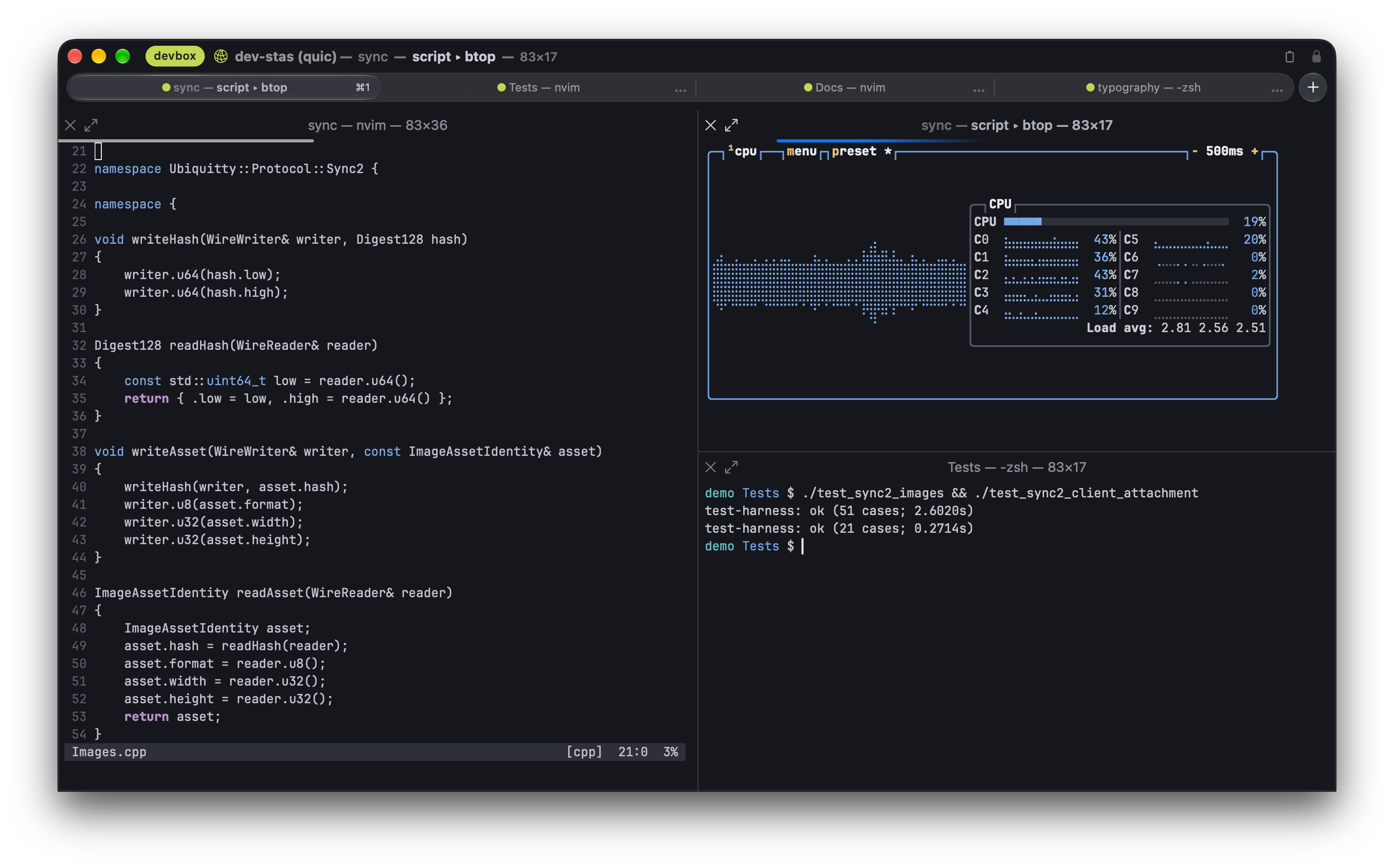
A remote session is the same thing as a local one: a host keeps it, and your client draws it. The host just runs on another machine.
SSH first
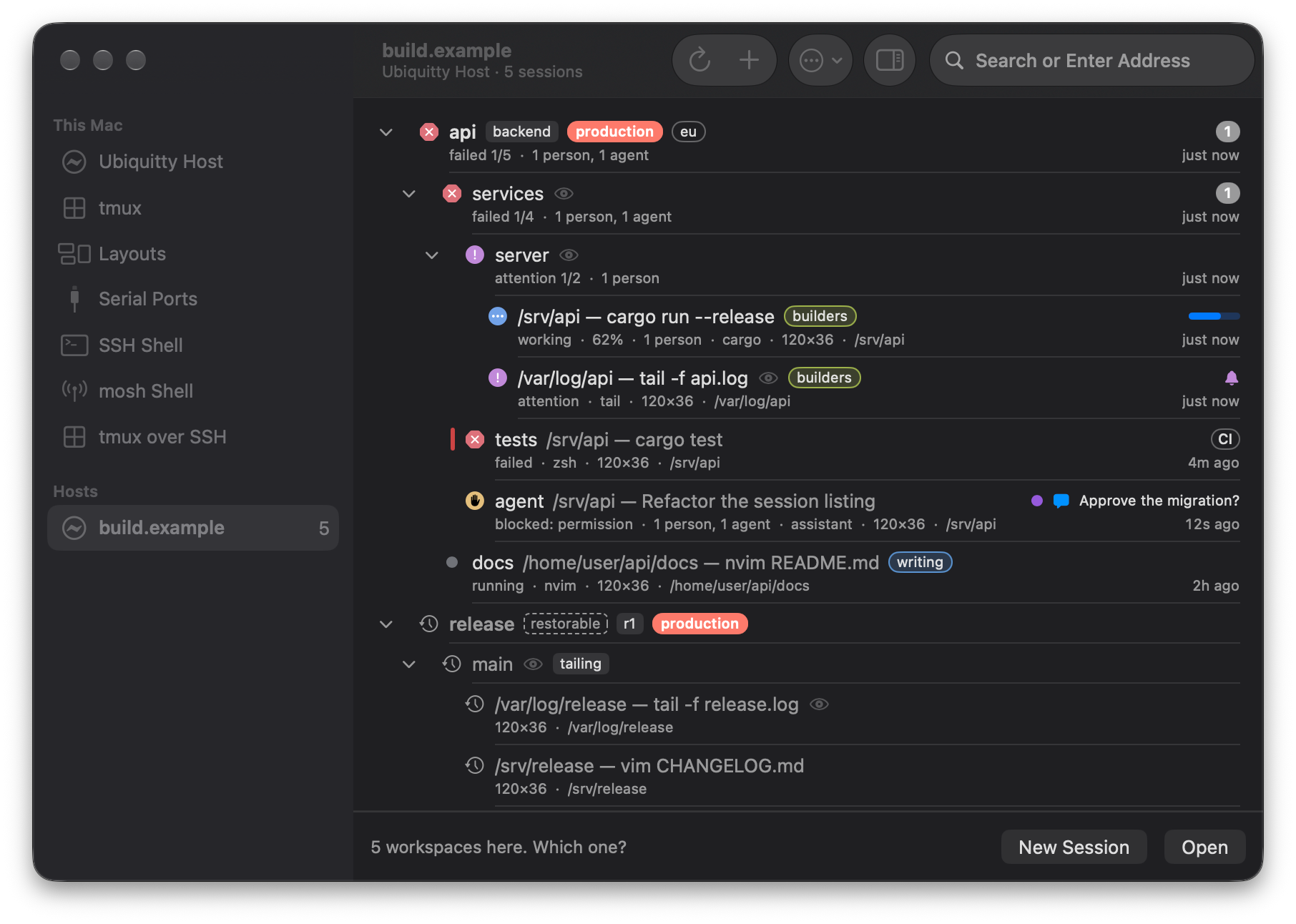
Section titled “SSH first”File › Connect (⌘⇧K) on macOS opens the Connect window. Pick a host, and the app runs a short bootstrap over SSH: the remote shell starts ubiquitty-host if it is not running, and the session stream begins. The desktop uses your OpenSSH in batch mode, with your keys or agent, and keeps host-key checking on. A liveness probe every 15 seconds closes a dead connection after three misses, so the client reconnects instead of waiting for TCP to give up.
If the host machine has no ubiquitty-host, Connect offers to install the matching binary that ships inside the app (macOS, Linux x86_64 or aarch64), after you approve that host. It never builds anything on the server. A host that is older than the client is offered an update in the same way; see Keeping the host current.
Then QUIC
Section titled “Then QUIC”Once SSH has authenticated you, the client can move the session onto QUIC. The bootstrap hands it a one-time token and the fingerprint of the host’s certificate; the client presents the token and pins the certificate, and the host accepts no session traffic before that. If UDP is blocked, the attempt gives up after five seconds and the session stays on SSH. The title bar says which transport is in use.
The host’s QUIC listener binds every interface on a port the system assigns. It uses address validation, accepts at most 64 connections and drops a connection that has not authenticated within 10 seconds. Start the host with --quic-port -1 to turn the listener off, or --quic-port N to fix the port. Details: Remote hosts.
On an iPhone or iPad
Section titled “On an iPhone or iPad”The iOS app is a client of a host; it runs no local shell. Hosts and credentials live in the Keychain, and the host key is pinned and shown in Settings. It shows a host’s sessions with what each runs and who is attached, opens tabs and splits, shows two panes side by side on wide screens, zooms with a pinch and reflows, takes dictation, sends and receives files through the host, and asks you before an agent attaches. It reattaches when it returns from the background.
Reconnecting
Section titled “Reconnecting”A dropped connection reconnects to the host’s session. Retained replica state can be resumed with changes; otherwise the host supplies a fresh checkpoint. The shell keeps running while the client is disconnected. A restarted host is a different instance and does not silently accept stale session identities.
File links
Section titled “File links”A file link in a hosted pane refers to that host. The client shows the host and resolved path with Download and Cancel. It sends no file request before approval. Reconnect or detach invalidates the question, and a file URI naming another host cannot select a connection. Local file links and ordinary HTTPS links retain their usual behavior.
Remote clipboard tools
Section titled “Remote clipboard tools”Paste an image from your Mac into a connected session with ⌘V. Ubiquitty uploads it to the host and inserts the remote file path, ready for a command or an agent that accepts image files. Text pastes go straight to the focused pane.
Programs on a remote host that read the clipboard through xclip, wl-paste or pbpaste can be answered from your client’s clipboard: [clipboard] remote_tools = "client" puts small stand-ins for those programs on the session’s path. It is off by default, because any process on that host could then read your clipboard. Writes through the stand-ins are refused.
Ubiquitty and this site are copyright © 2026 Stanislav Yaglo. Ubiquitty is licensed under the Apache License 2.0.
Apple, iPad, iPadOS, iPhone, Keychain, Mac, macOS, Metal, Swift and Xcode are trademarks of Apple Inc., registered in the U.S. and other countries and regions.